How to Add Multiple Service Areas to a Google Business Profile Correctly
To add multiple service areas to your Google Business Profile, go to your profile, select Edit Profile > Location, then click Edit next to “Service area.” Enter up to 20 service areas by city, postal code, or region — not by radius. .
Most business owners set up service areas expecting their Google Maps visibility to expand automatically. It does not work that way.
Adding 20 cities to your profile does not mean you will rank in all 20 cities. That is the core misunderstanding this article addresses.
What Is a Service Area in Google Business Profile?
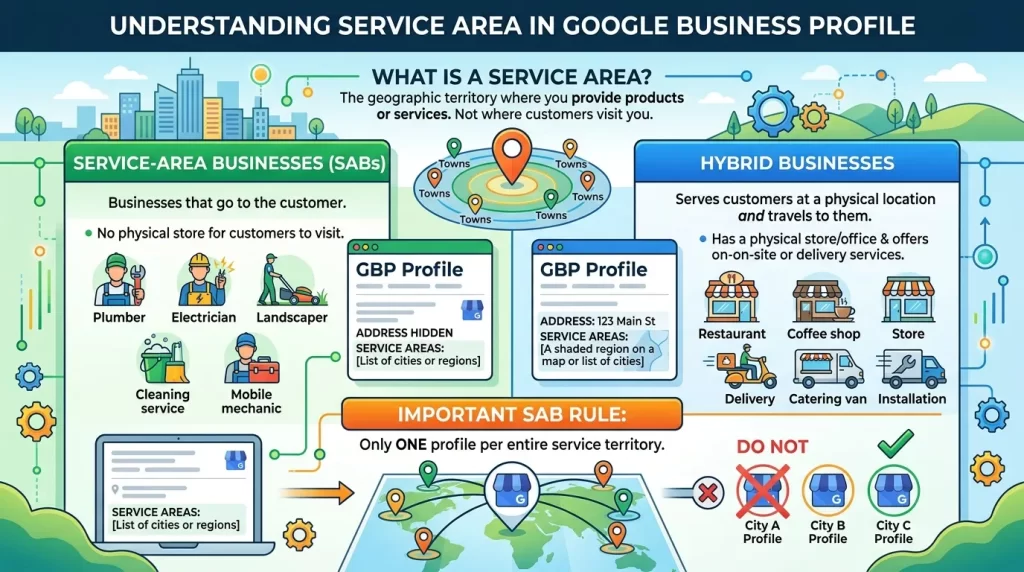
A service area defines where your business provides products or services — the geographic territory you cover, not the address where customers visit you.
Google uses service area settings for two business types:
- Service-area businesses (SABs): Businesses that go to the customer. Think plumbers, electricians, landscapers, cleaning services, and mobile mechanics. These businesses hide their address and list only their service areas.
- Hybrid businesses: Businesses that serve customers at a physical location and also travel to them. A restaurant that delivers is a hybrid. These businesses display their address and define a service area.
For a deeper push on category optimization, see our guide on How Many Categories Should You Choose on Google Business Profile .
Service Areas vs. Physical Locations: Key Differences
| Factor | Service Area Business | Physical Location (Storefront) |
|---|---|---|
| Address displayed | Hidden | Publicly visible |
| Number of GBP profiles allowed | One per service territory | One per physical location |
| Proximity ranking basis | Business base location | Physical address |
| Coverage definition | Up to 20 cities, postal codes, or regions | Address + radius |
| Google Maps pin | No pin shown | Pin shown at address |
| Verification method | Video or phone | Video, postcard, or phone |
A storefront ranks based on its physical proximity to the searcher. An SAB ranks based on the proximity of its base of operations — and only within the regions it has listed as service areas.
What Service Areas Do and Do Not Influence in Rankings
This is where most businesses get confused. Service area settings affect some things and have no effect on others.
| Ranking Factor | Influenced by Service Areas? | What Actually Drives It |
|---|---|---|
| Proximity to searcher | Partially | Your registered business base location |
| Relevance to search query | No | Primary category, services list, description, website content |
| Local pack ranking position | No direct effect | Category, reviews, citations, website relevance |
| Google’s entity understanding | Yes | Confirms geographic scope of the business |
| AI Overview inclusion | No direct effect | Review content, product descriptions, website depth |
| Maps filter results | Yes | Coverage confirmation for location-based filters |
| Knowledge Graph associations | Yes | Helps Google associate business with specific regions |
Service areas confirm where you operate. They do not tell Google you deserve to rank highly in those places.
The #1 Mistake Business Owners Make with Service Areas
Adding every city within a 200-mile radius because “more coverage equals more visibility” is the most common error. That logic works on paper. It fails in practice.
Google’s guidelines state that your total service area should not exceed approximately two hours of driving time from your business base. Exceeding that boundary does not expand your reach — it signals geographic inaccuracy to Google.
Adding irrelevant or unreachable service areas dilutes the relevance signal your profile sends. A plumber in Chicago adding Los Angeles as a service area does not help that plumber rank in LA — it reduces Google’s confidence in the profile’s accuracy overall.
The third mistake is listing broad regions — entire states, metro areas — instead of specific cities or postal codes. A profile listing “Austin, TX” and “Round Rock, TX” as separate entries will rank more accurately for searches in those places than a profile listing “Central Texas.”
How to Add Multiple Service Areas to Your GBP: Step-by-Step
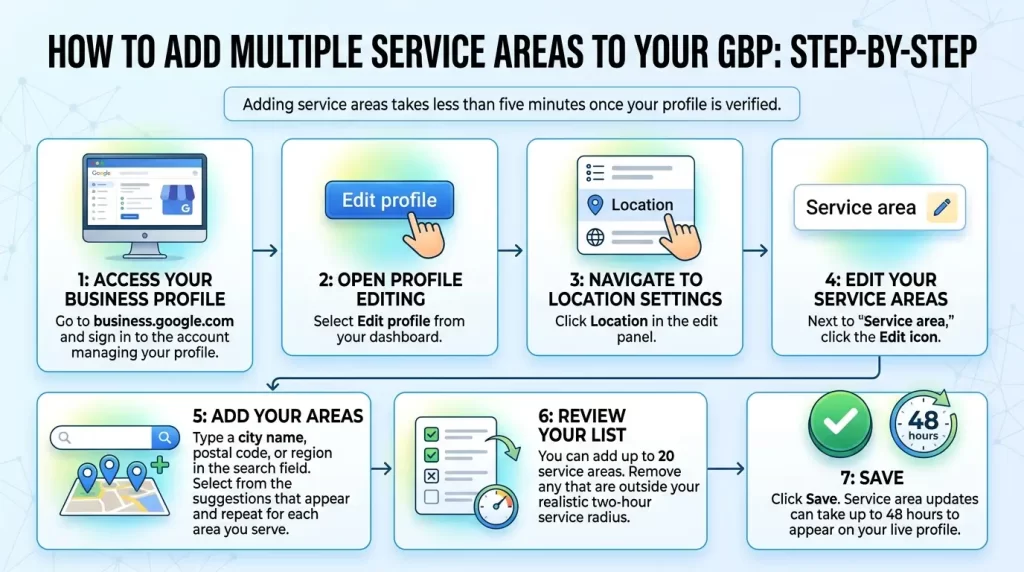
Adding service areas takes less than five minutes once your profile is verified.
Step 1: Access your Business Profile
Go to business.google.com and sign in to the account managing your profile.
Step 2: Open profile editing
Select Edit profile from your dashboard.
Step 3: Navigate to location settings
Click Location in the edit panel.
Step 4: Edit your service areas
Next to “Service area,” click the Edit icon.
Step 5: Add your areas
Type a city name, postal code, or region in the search field. Select from the suggestions that appear and repeat for each area you serve.
Step 6: Review your list
You can add up to 20 service areas. Remove any that are outside your realistic two-hour service radius.
Step 7: Save
Click Save. Service area updates can take up to 48 hours to appear on your live profile.
What you cannot do:
- Set a radius-based service area (Google deprecated this feature)
- Add more than 20 service areas
- Create separate GBP profiles for each city you serve as an SAB
How Many Service Areas Should You Add?
The right number depends on where you realistically go, not where you wish you could rank.
Follow these guidelines:
- Add every city, town, or postal code where you genuinely serve customers. If you have completed jobs there, add it.
- Do not add areas speculatively. Adding cities where you hope to get work does not generate leads there.
- Stay within the two-hour driving boundary. Google is explicit about this limit in its official documentation.
- Use city-level specificity where possible. “Evanston, IL” is more useful than “Northern Illinois.”
- Fill up to 20 if your coverage legitimately spans that many areas. Under-listing your actual territory means you will miss relevant searches.
Before choosing service areas, it’s important to understand whether your business should be set up as a service area business or a storefront business on Google Business Profile, since the wrong setup can create visibility and compliance issues.
Service Areas and Google Maps Rankings: The Truth
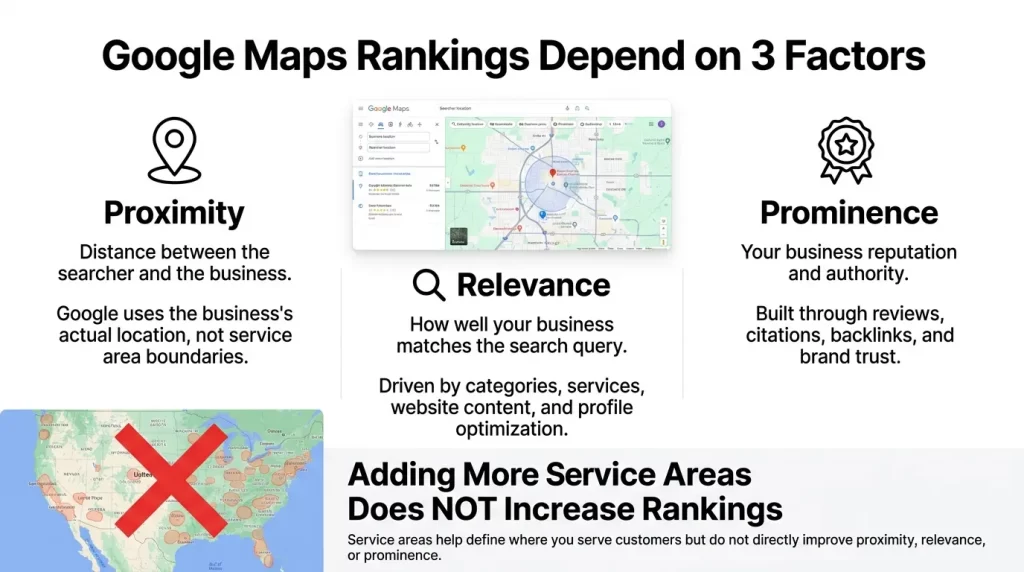
Google has described local ranking as a function of three factors for well over a decade: proximity, relevance, and prominence.
Proximity is distance from the searcher to the business. For SABs, Google calculates this from the registered base location, not the service area boundaries. You cannot manipulate proximity by expanding your service area list.
Relevance is the match between the search query and your profile. Your primary category carries the largest single relevance signal, followed by your services list, profile description, and website content. Service area settings contribute nothing to relevance.
Prominence is your online authority and offline reputation. It is built through backlinks, consistent NAP data across directories, review count, review velocity, and review sentiment. Service area settings contribute nothing to prominence.
How Service Areas Influence AI Search Visibility
AI Overviews now appear for approximately 68% of local searches, according to a Q2 2025 Whitespark study. Local packs appear for about 39% of queries — and they respond to different signals.
For simple local intent queries — “plumber near me” — local packs still dominate, appearing for over 90% of those searches. For informational queries — “how much does a plumbing repair cost in Phoenix” — AI Overviews dominate, appearing for up to 97% of those searches.
Service area settings do not directly influence AI Overview inclusion. What does influence it:
- Review content.
- Product and services descriptions
- Website content.
- Unstructured citations
The Right Way to Rank in Multiple Cities
Service areas alone do not produce multi-city rankings. Ranking across multiple cities requires city-specific trust signals — not just a checkbox on your GBP.
- Build local landing pages on your website
- Collect location-specific reviews
- Build city-level citations
- Create service-specific content
- Link your GBP service areas to your location pages
GBP Service Area Optimization Checklist
Use this checklist to audit your current service area setup and identify gaps.
Service area configuration:
- Service areas are specified by city, postal code, or named region — not by radius
- No more than 20 service areas listed
Profile completeness:
- Primary category is the most specific accurate description of your core service
- Services list is fully populated with individual service names and descriptions
Reviews and citations:
- Actively collecting reviews with location-specific language in requests
- Responding to all reviews within 24 hours
Website alignment:
- Each major service city has a dedicated landing page on your website
- Landing pages include unique content not just the city name swapped into a template.
Schema markup recommendations:
- Local business schema with area served property listing each service city
- FAQ page schema on your FAQ pages
Frequently Asked Questions
Do service areas directly improve my Google Maps ranking?
No. Service areas define your coverage territory and tell Google where you operate. Rankings in specific cities are built through city-specific reviews, local landing pages, citations, and website relevance signals — not service area settings.
Can I add an entire state as a service area?
You can enter a state, but it is not recommended. Google’s guidelines advise staying within approximately two hours of driving time from your base, and a state-level entry is too broad to help you rank accurately. Use city-level or postal-code-level entries instead.
How many service areas should I add?
Add every city, town, or postal code where you genuinely serve customers — up to the 20-area maximum. Accuracy matters more than volume.
Can I create a separate GBP profile for each city I serve?
No. Service-area businesses are permitted one profile per service territory. Creating multiple profiles for the same business across different cities violates Google’s guidelines and risks suspension of all profiles.
How long do service area changes take to appear on Google?
According to Google’s official documentation, approved service area edits can take up to 48 hours to appear on your live Business Profile.
Conclusion
Adding multiple service areas to your Google Business Profile is simple, but doing it strategically matters. Service areas help customers understand where you work and can improve relevance for location-specific searches.
However, service areas alone won’t improve your Google Maps rankings. Strong rankings come from the right primary category, quality reviews, relevant service pages, consistent business information, and a fully optimized profile.
The best approach is to add only the cities and regions you genuinely serve, keep your information accurate, and support your GBP with a strong local SEO strategy.
Need help optimizing your profile for better visibility and more leads? Contact us for professional Google Business Profile optimization services and expert guidance tailored to your business.

Arbaz Shaukat is a Local SEO Expert who helps websites generate more leads, traffic, and sales from Google and AI-driven search platforms like ChatGPT through proven SEO strategies. He is the Founder of GBP Optimization Services, where he works closely with businesses to improve their online visibility on the internet.
Since 2020, Arbaz has been active in SEO and loves to share experience-based blog content offering practical insights, tested SEO techniques, and real-world strategies that help businesses grow and compete effectively online.